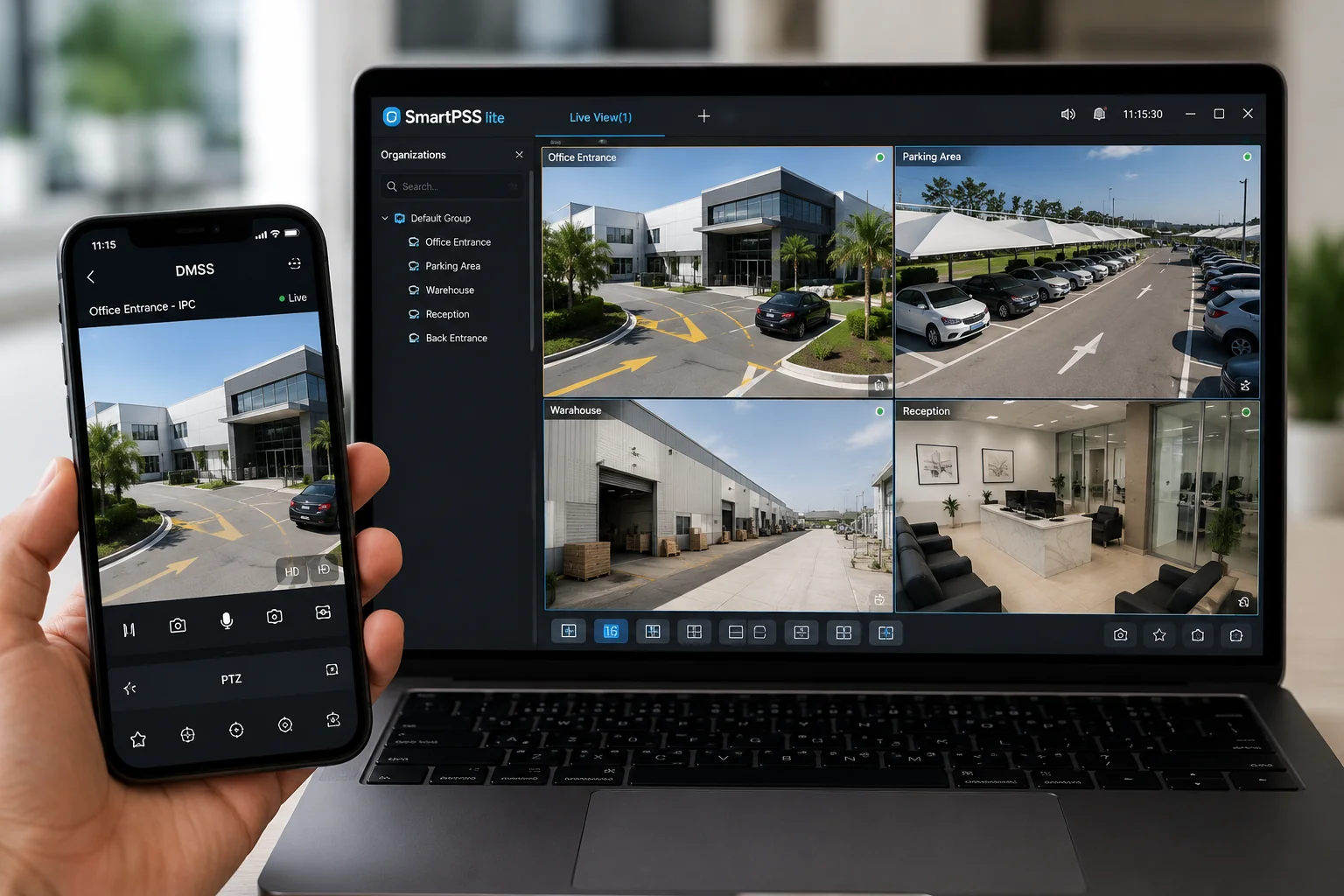
The answer takes about ten minutes if you set it up the right way, and it creates a support burden for years if you do not. Remote access is where a lot of otherwise solid Dahua installations get weakened: usually by opening ports on a client’s router that should never have been opened.
This guide covers the three routes into a Dahua NVR from outside the site, the setup steps for the DMSS mobile app and SmartPSS Lite on desktop, and the handover checklist that keeps the system secure once you have driven away.
Three Ways to Reach a Dahua NVR From Outside
Before touching an app, decide which method the project actually calls for. They are not equivalent and the choice has security consequences.
For the large majority of installations in Oman, P2P is the correct answer. It is quick, it survives the dynamic IP addresses that most connections here use, and it keeps the recorder off the public internet. Port forwarding should be treated as a last resort, not a default.
Alt text: Dahua DMSS mobile app and SmartPSS Lite desktop client showing live CCTV footage from an NVR in Oman
Check These Before You Start
Five minutes here prevents most of the problems that turn up later:
- The NVR has working internet. Not just a network cable, actual internet. Confirm the gateway and DNS settings are correct on the recorder, not just on the router.
- Every device is initialised with a real password. If you are still at that stage, see the default IP and password guide first.
- Cameras are added and recording. Remote access shows you what the NVR has; it does not fix a camera that never registered. If devices are still being addressed, finish that with the ConfigTool workflow before moving on.
- Firmware is current. Older builds sometimes fail to register with the cloud service at all, and the error message rarely says so.
- Upload bandwidth is realistic. Remote viewing consumes the site’s upload, which on most connections is the smaller number. This is the single most common cause of "the app is slow" complaints.
| Method | How it works | Best for | Watch out for |
|---|---|---|---|
| P2P (Dahua cloud) | The NVR registers with Dahua’s servers using its serial number. Apps connect through that relay. Nothing is exposed to the internet. | Most projects: retail, offices, villas, small multi-site | Depends on Dahua’s cloud being reachable. If the client’s policy forbids third-party cloud, this route is out. |
| DDNS + port forwarding | Ports on the client’s router are opened and mapped to the NVR. | Sites with a fixed public IP and a genuine reason to avoid cloud | Directly exposes the recorder to the internet. Scanned within hours of going live. Avoid unless there is no alternative. |
| VPN into the site network | The remote device joins the site network, then connects locally. | Government, banking, oil and gas, anything with an IT security policy | Needs the client’s IT team involved and a firewall that supports it. |
Step 1: Enable P2P on the NVR
On the recorder’s local monitor or through its web interface, go to the network settings and find the P2P section.
- Enable P2P.
- Wait for the status to change to Online. If it stays offline, the NVR does not have working internet access: fix that before going further.
- Note the serial number, and leave the QR code on screen. You will scan it in a moment.
If the status refuses to go online, work through it in this order: does the NVR have a gateway set, does it have a DNS server set, can it resolve anything, and is outbound traffic being filtered by the client’s firewall. On corporate networks the last one is usually the answer.
Step 2: Add the NVR to DMSS
DMSS is Dahua’s current mobile app for iOS and Android. It replaced the older gDMSS and iDMSS applications, and those legacy versions should not be installed on new systems: they cause a lot of avoidable confusion when a client has both.
Adding by QR code
- Install DMSS from the App Store or Google Play. Open it and allow camera and notification permissions.
- Tap the plus icon, then choose the SN or scan option.
- Scan the P2P QR code from the NVR screen.
- Select the device type: NVR for an IP camera system, DVR or XVR for an analogue or HDCVI system, or the standalone camera option for a single unit.
- Enter the device username and password, give it a name the client will recognise, and save.
- The device should show online within about half a minute. Tap it to open live view.
Adding manually
No QR code visible, or you are configuring remotely? Choose manual entry and type the serial number from the NVR’s system information page, then enter the credentials as above. The result is identical.
Step 3: SmartPSS Lite on the Client’s Desktop
Phones are for checking. A desk in a security office or a manager reviewing incidents needs a screen, and that is what SmartPSS Lite is for. It handles multi-camera walls, longer playback sessions and export.
- Download SmartPSS Lite from Dahua’s official site and install it.
- On first launch it asks you to set a password for the software itself and to complete security questions. Do this properly: this password protects access to every camera the client owns, and it is not the same as the NVR password.
- Open device management and add a device.
- Choose the serial number method for P2P devices, enter the NVR serial number, and add the device username and password.
- Confirm the device shows an online indicator in the list.
- Open live view and drag the cameras into the layout the client wants. Save that layout so it loads the same way every time.
If the serial number is not written down anywhere on site, it is available in the device details section of DMSS on a phone that already has the system added, which is why setting up the phone first is usually the faster order.
Making the Stream Actually Play Smoothly
Almost every complaint about lag or stuttering traces back to bandwidth rather than the app.
Every Dahua camera produces two streams. The main stream is the full-resolution recording. The sub-stream is a smaller, lower-resolution version intended exactly for remote viewing. Local playback should pull the main stream; a phone on mobile data should not.
- Set the sub-stream to a sensible resolution and bitrate at commissioning: it is often left at a default that is either uselessly small or unnecessarily large.
- Configure DMSS to open on the sub-stream by default and switch to main stream only when the user needs detail.
- Remember that upload is what matters at the site end. A connection advertised on its download speed may have a fraction of that going the other way, and four people watching simultaneously multiply the demand.
- On multi-branch clients, check each branch separately. A scheme that works in a Muscat office may struggle at a remote site on a weaker connection.
Push Notifications and AI Events
An app that only shows live view gets opened once a week. An app that tells the client something happened gets opened every day, and that is what makes a system feel worth what they paid for it.
On Dahua systems with AI-capable cameras or recorders, the event types worth enabling are the ones that filter out noise: person detection and vehicle detection rather than raw motion, tripwire crossings on a perimeter, and intrusion into a defined area. Configure these on the NVR or camera, then enable notifications for those specific events in DMSS.
Two pieces of advice from systems we support:
- Do not enable everything. A client who receives ninety notifications on day one turns them all off on day two and never turns them back on.
- Tune the zones on site. A palm tree moving in the wind, a road behind a perimeter fence, or a reflective surface in strong afternoon sun will each generate constant triggers until the detection area excludes them.
Where the project also includes Dahua video intercom or access control, door call and door event notifications can reach the same app, which is a genuinely useful sell for villa compounds and small offices.
Security Steps Before You Hand Over
Remote access widens the attack surface of every system it is added to. These steps take a few minutes and are the difference between a professional handover and a liability:
- Do not use port forwarding unless there is no alternative. An exposed recorder is found by automated scanners quickly, and default or weak credentials behind it are the most common route into a CCTV system.
- Disable UPnP on the router. It can quietly open the ports you were careful not to open.
- Give the client their own account. Create separate operator accounts with viewing rights rather than handing over the admin login. The admin account should belong to whoever holds the maintenance contract.
- Check the recovery email is the client’s. Not the installer’s, not a technician’s personal address. This is the most common awkward discovery two years into a system’s life.
- Remove the system from your own phone once handover is complete, unless the client has asked you to keep monitoring access as part of a service agreement.
- Document it. Device name, serial number, account structure, which streams are configured, and which events are enabled. Hand that sheet over with the system.
When DMSS Says Offline
\
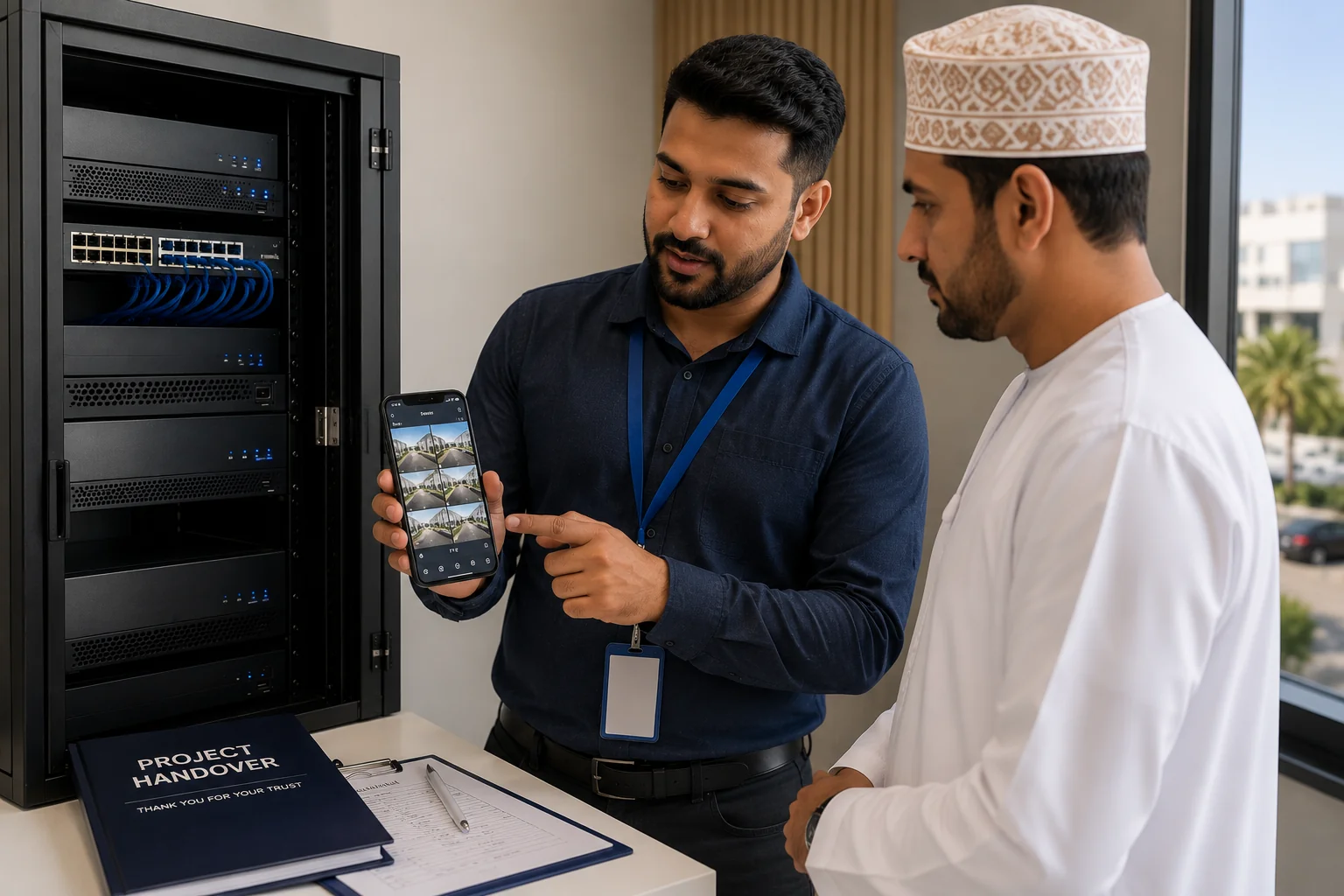
Alt text: Elite Infotech engineer setting up Dahua DMSS remote access during a client handover in Muscat, Oman
Notes for Projects in Oman
- Multi-branch clients are the common case here. Retail groups, restaurant chains and logistics operators typically run several sites across Muscat, Sohar, Salalah and Nizwa. Set the naming convention on the first site and repeat it: a head office manager scrolling an unlabelled device list is a support call waiting to happen.
- Confirm the cloud policy on regulated projects. Government, banking and oil and gas clients frequently have an IT security policy that rules out third-party cloud relays. Ask early. Rebuilding a remote access design after handover is expensive.
- Site connections vary widely. A fibre connection in a business district and a connection at a remote industrial site are not comparable. Test remote viewing from outside the site network before you call the job complete: testing from inside proves nothing.
- Arabic-speaking end users. DMSS carries multiple interface languages. Setting the client’s preferred language during handover is a small courtesy that meaningfully reduces follow-up questions.
- Third-party VMS or a video wall on site. Pull the stream straight from the camera or NVR with the Dahua RTSP URL format rather than routing it through DMSS.
| Symptom | Likely cause | What to check |
|---|---|---|
| Device offline immediately after adding | P2P not enabled, or NVR has no internet | NVR network settings: gateway and DNS |
| Was online, now offline | Site internet down, or router restarted and lost its lease | Confirm site connectivity, then check the NVR still has an address |
| Online but no video | Wrong device password saved in the app | Re-enter credentials in the device settings |
| Some cameras black in the app | Those channels are not registered on the NVR | Check camera registration on the recorder, not the app |
| Video stutters on mobile data only | App pulling main stream instead of sub-stream | Switch the default stream and check the sub-stream bitrate |
| Offline only on the corporate network | Firewall blocking outbound traffic to the cloud service | Ask the client’s IT team to permit the NVR’s outbound connection |
| Works on one phone, not another | A legacy gDMSS or iDMSS app is installed on the second phone | Uninstall the legacy app and install current DMSS |
| Notifications never arrive | App notification permission denied at OS level, or events not enabled on the NVR | Check phone settings first, then the recorder’s event configuration |