
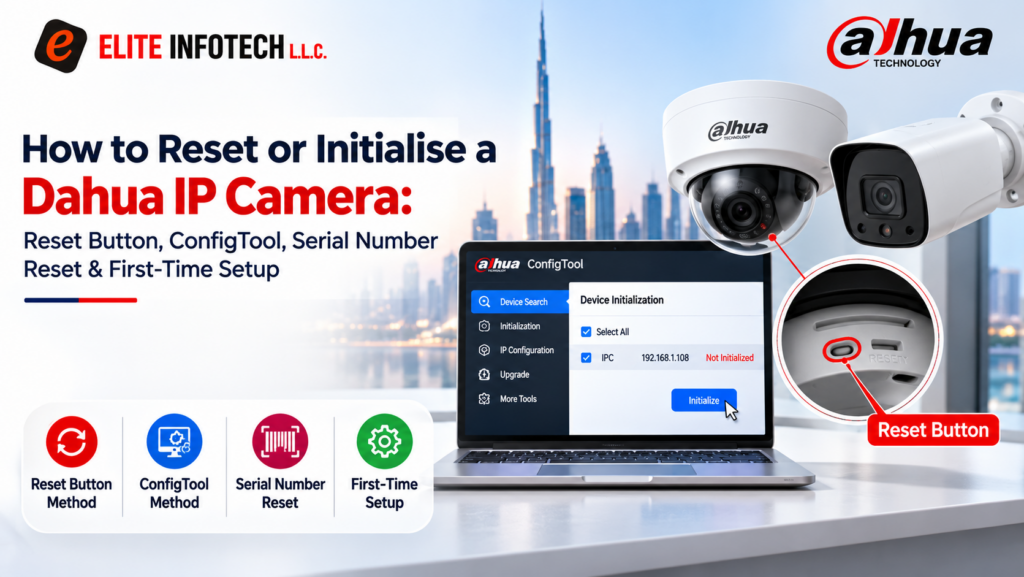
Locked out of a Dahua IP camera, or setting one up for the first time? There are three ways to get back in. The right one depends on what you still have: the camera itself, the email you added at setup, or neither.
This post covers each Dahua IP camera password reset method in plain steps, then first-time setup so you don’t get locked out again. Elite Infotech is an authorised Dahua dealer in the UAE.
Which Reset Method You Need
Start at the top and stop at the first one that fits:
- You can reach the camera and it has a reset button. Use the button. It’s the quickest fix, but it wipes every setting.
- You can’t get to the button, but you added an email at setup. Reset the password by email and QR code. Your settings stay as they are.
- No button access and no email. Ask your dealer for a Dahua password reset by serial number, using a file exported from ConfigTool.
What a Reset Changes
A button reset returns the camera to factory settings. That clears the password, the IP address, image settings and motion rules. The camera then shows as uninitialised and needs setting up again.
Before you reset:
- Note down your settings, especially the IP address your recorder expects.
- Back up anything on the camera’s memory card, if it has one.
- Recordings on your NVR are stored on the NVR, not the camera, so a camera reset doesn’t touch them. The NVR will lose contact with the camera until you add it back with the new password.
The email and dealer methods only change the password.
Method 1: Reset With the Button
- Make sure the camera is powered, through PoE or its 12 V supply.
- Find the reset button. On many models it sits under a cover near the memory card slot.
- Press and hold it for at least 10 seconds, and keep holding until the camera restarts. You may hear a click or see the lights go off and on.
- Let the camera boot fully, then initialise it as a new camera (see below).
Some models have no button and use a pair of reset wires instead. If you’re not sure which yours has, check the model’s manual before opening anything. On outdoor cameras, close the cover firmly afterwards to keep water out.
Method 2: Dahua IP Camera Password Reset by Email and QR Code
This works only if you added a reserved email when the camera was first set up, and only for the admin account.
- Open the camera’s web page in a browser, or open ConfigTool and choose the password reset option.
- Click Forgot password. A QR code appears.
- Open the DMSS app on your phone and use its device password reset option to scan the QR code.
- A security code is sent to the reserved email.
- Enter the code and create a new password.
Method 3: Dahua Password Reset by Serial Number Through Your Dealer
If there’s no button you can reach and no reserved email, your dealer can request a reset from Dahua. The camera must already be initialised and on your network.
- Open ConfigTool and choose Password Reset.
- Select the camera and choose the option to export a file. Save it to your computer.
- Send the file to the dealer you bought the camera from. They may also ask for the serial number from the camera’s label and proof of purchase.
- When the dealer sends back a result file, open it in ConfigTool and set a new password.
Keep ConfigTool open, and keep the camera powered and connected, while you wait for the reply.
How to Initialise a Dahua IP Camera
Initialising is the first-time setup where you create the admin password. Newer Dahua firmware has no default password, so a new or reset camera stays uninitialised until you set one.
To do it with ConfigTool:
- Connect your computer to the same network as the camera.
- Open ConfigTool. It lists the Dahua devices it finds, including uninitialised ones.
- Select the camera and click Initialize.
- Set a strong password and add a reserved email for future resets.
- Change the camera’s IP address to suit your network.
Our Dahua ConfigTool walkthrough covers the IP step in more detail.
Before you finish, check:
- The password is 8 to 32 characters and mixes at least two of: letters, numbers, symbols.
- The reserved email is one you’ll still use in a few years.
- You’ve written the password down somewhere safe.
- The camera’s new IP address is recorded for your NVR.
How to Change a Dahua IP Camera Password
If you know the current password, you don’t need a reset. Log in to the camera through a web browser, open the account settings and change the admin password there.
If the camera is connected to an NVR, update the password on the NVR too, or the NVR won’t be able to connect to it.
Getting Dahua Support in the UAE
As an authorised Dahua dealer, Elite Infotech supplies genuine Dahua cameras with installation, configuration and after-sales support across the UAE.
If a reset doesn’t work, contact us with your camera’s model and serial number.
Frequently Asked Questions
Does a Dahua IP camera have a default password?
Not on newer firmware. The username is admin, and you create the password yourself when you first initialise the camera.
What password rules does Dahua use?
Passwords must be 8 to 32 characters and include at least two types: letters, numbers or symbols. Some symbols, including quotation marks, semicolons and colons, are not allowed.
Will resetting my Dahua camera delete recordings?
Recordings stored on an NVR are not affected. A button reset clears the camera’s settings, so back up anything important on the camera’s own memory card first.
Where do I find my Dahua camera’s serial number?
It’s printed on the label on the camera body.
Can I reset a Dahua camera without opening it?
Yes, if it’s already set up and still on your network. Use the email and QR code method, or export a reset file in ConfigTool and send it to your dealer.