
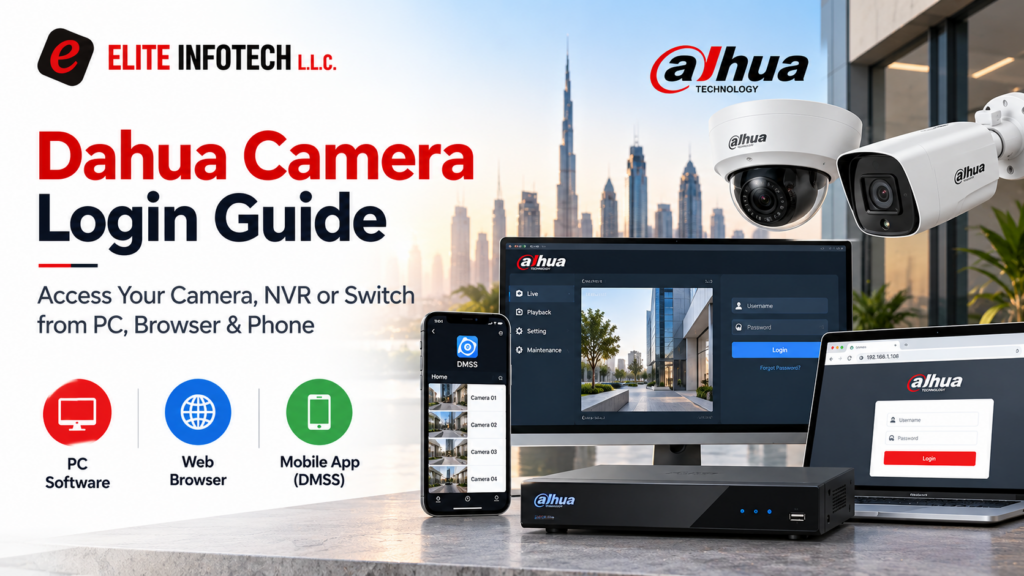
The Dahua camera login requires a few basic details, regardless of how you access the device. These include the IP address, admin username and password set when Elite Infotech configured your system. What changes is the method you use. A browser works well for a quick look; SmartPSS Lite works best on a PC when you are watching many cameras, DMSS works on your phone, and a switch has its own web page. This guide explains each method, the ports that are used and the solutions that fix login failures.
Since Elite Infotech installs and sets up your Dahua equipment, you can skip the setup and go directly to logging in.
How Do You Do a Dahua Camera Login from a Web Browser?
To open a Dahua camera in a browser, connect your PC to the same network as the camera, type its IP address into Chrome or Edge, and sign in with your admin username and password.
A Dahua camera login takes three steps:
- Connect your PC to the same Wi-Fi or network as the camera.
- Type http:// followed by the camera’s IP address into the address bar. If the HTTP port was changed, add it after the IP with a colon.
- Enter your admin username and password.
Use the IP address we gave you. Newer firmware opens this Dahua web login directly, while older models may ask for a web plugin or IE mode. If you are still choosing hardware, our range of Dahua CCTV cameras covers fixed dome, turret, PTZ and fisheye models.
How to Access Dahua IP Camera from PC with SmartPSS
SmartPSS Lite is Dahua’s free desktop client for watching several cameras at once. Install it, then add each device with its IP address, port 37777, username and password. Every feed then appears in one window. When you do not know a device’s IP address, ConfigTool scans the local network and lists each Dahua unit it finds.
If you only need to know how to access a Dahua IP camera from pc now and then, the browser route above is quicker. SmartPSS Lite earns its place once you manage more than a handful of cameras.
How Do You Do a Dahua NVR Login from Your Phone with DMSS?
To log in to a Dahua NVR from your phone, install the DMSS app, tap Add Device and scan the QR code on the recorder. Enter the NVR’s admin password and you can watch live and recorded video from anywhere with a connection. If the QR code will not scan, you can add the recorder with its IP address and port 37777 instead.
Here is the full process:
- Install the DMSS app on your phone and tap Add Device.
- On the recorder’s screen, go to Main Menu > Network > P2P to display the QR code, then scan it with your phone.
- If scanning does not work, enter the recorder’s IP address and port 37777 manually.
- Type the NVR’s admin password and save the device.
The QR code route works through Dahua’s P2P service, so the recorder needs to be online. If it shows as offline in the app, check the P2P status on the NVR first.
Which Ports Do Dahua Devices Use?
A Dahua camera login can fail when a router or firewall blocks one of these defaults, or when someone has changed a port and the new number was never passed on, so check the ports before blaming the password. The table below shows what each one does.
| Port | Protocol | Used for |
| 80 | HTTP | Web interface |
| 443 | HTTPS | Secure web interface |
| 37777 | TCP | SmartPSS and DMSS |
| 37778 | UDP | Media streaming |
| 554 | RTSP | Video stream |
How to Fix Common Dahua Login Problems
Most failed attempts trace back to a handful of causes: a PC on a different network from the device, a wrong or changed IP address, a blocked or changed port, browser or plugin problems on older models, or an account lock after repeated wrong passwords. The same checks apply whether you are opening a camera, a Dahua web login page or a Dahua NVR login from your phone.
- Check that your PC and the device share the same subnet.
- Find the device’s real IP address with ConfigTool.
- Try both http:// and https:// in the address bar.
- Add the port after the IP if the HTTP port was changed.
- Clear your browser cache, or switch between Chrome and Edge.
- Enable the web plugin or IE mode if the model is older.
- Wait out an account lock instead of retrying, and use the reset options if you forgot the password.
Get Expert Help with Dahua Login and Installation in the UAE
A smooth Dahua camera login depends on a matching network, the right port and a password you can find again, and all three are easy to sort out once you know where to look. Keep the IP address, port and admin password for each device somewhere safe, and your next sign-in takes seconds.
If you would rather not troubleshoot at all, Elite Infotech can take it off your hands. We are an authorised Dahua dealer in Dubai, supplying genuine products with the full manufacturer warranty, then handling installation, configuration and after-sales support across the UAE. Your system arrives ready to open from your PC, browser and phone from day one. You can see the full range on our Dahua brand page.
Planning a new system, or struggling to reach an existing one? Tell us your camera count and site type, and we will send a quotation within 2 hours. Get Your Free Dahua Quote in 2 Hours
FAQs
How do I log in to a Dahua camera?
Open the camera’s IP address (192.168.1.108 by default) in Chrome or Edge on the same network and sign in as admin. SmartPSS and DMSS also work.
Why can’t I open the Dahua web login page?
Usual causes: a different subnet, wrong IP, changed HTTP port, browser cache, or an older model needing the plugin. Scan with ConfigTool.
Which ports does a Dahua camera or NVR use?
HTTP 80, HTTPS 443, TCP 37777 (SmartPSS and DMSS), UDP 37778 and RTSP 554. Change them under Network > Port if they clash.
How do I access a Dahua NVR from my phone?
Install DMSS, tap Add Device, scan the QR code (Main Menu > Network > P2P) or enter the IP and port 37777, then sign in.
My Dahua account is locked. What should I do?
Wait for the lock to expire, often 5 to 30 minutes depending on the firmware, then retry. If you forgot the password, use the reset options.