
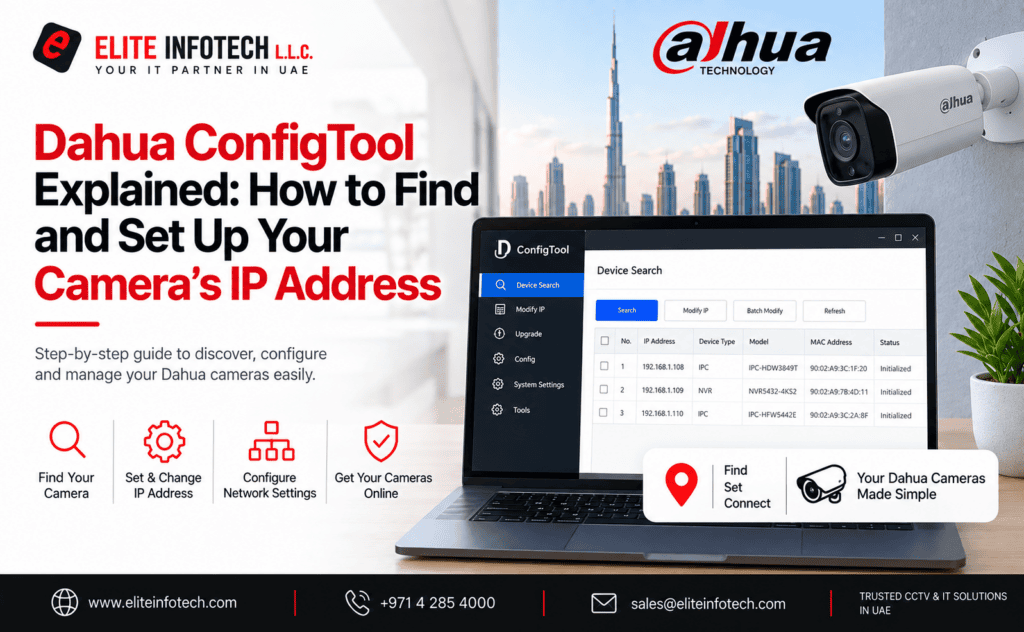
If you have just unboxed a new Dahua camera or NVR and plugged it into your network, there’s a good chance it isn’t showing up where you expect it to. Every Dahua IP device ships with a default IP address, and unless that address happens to match your local network’s range, your computer simply won’t be able to find it. This is the single most common snag installers and homeowners run into with Dahua gear and it’s exactly the problem Dahua ConfigTool was built to solve.
What Is Dahua ConfigTool?
Dahua ConfigTool is a free desktop application from Dahua Technology that scans your local network, lists every Dahua device it can see, and lets you configure each one without logging into its web interface individually. Instead of connecting a monitor and keyboard to a camera one at a time, you run ConfigTool on a laptop connected to the same network, and it does the discovery work for you. It’s the utility system integrators and CCTV installers across Dubai and the UAE use on almost every job that involves more than one or two cameras — including our own installation team at Elite Infotech, an authorized Dahua dealer based in Dubai.
What Can You Do With It?
Beyond basic IP address changes, ConfigTool handles most of the day-to-day network administration a Dahua installation needs:
- Device discovery — automatically detects Dahua cameras, NVRs and DVRs on the local network, even if they’re all still sitting on their factory-default IP address.
- Network configuration — lets you set a static IP address, subnet mask, gateway and DNS for each device, so it sits cleanly on your existing network instead of clashing with other equipment.
- Batch configuration — for larger installs, you can select multiple devices at once and push the same network settings, saving a lot of time on multi-camera sites.
- Firmware updates — pushes the latest firmware to a device directly, which matters for both new features and security patches.
- Password and account management — sets the initial admin password (mandatory on first setup) and can reset credentials if a device is locked out.
- Backup and restore — saves a device’s configuration to a file so it can be reapplied quickly if the unit is ever replaced or reset.
Step-by-Step: Finding and Configuring Your Dahua Device’s IP Address
- Download ConfigTool from Dahua’s official website and install it on a Windows PC connected to the same network (or the same switch, for a fresh installation) as your camera or NVR.
- Open ConfigTool and run a search. It will list every Dahua device it detects, along with its current IP address, MAC address, and model.
- Select the device you want to configure from the list.
- Set the initial password, if this is a new device — Dahua devices require you to create a strong admin password before they’ll accept any other configuration.
- Edit the network settings — assign a static IP address inside your network’s range, along with the correct subnet mask and gateway, so the device stops relying on a temporary or conflicting address.
- Save and reboot the device if prompted. It should reappear in the ConfigTool list at its new address within a minute.
- Repeat for each device, or use the batch-configuration option if you’re setting up several cameras with sequential IP addresses at once.
Common ConfigTool Problems (and Fixes)
Device doesn’t show up in the search. The most frequent cause is that the camera and your PC are on different subnets or VLANs — plug the PC directly into the same switch or PoE injector as the camera to rule this out. A firewall blocking ConfigTool’s discovery broadcast is the second most common cause.
IP address conflict. If two devices end up with the same IP, both will drop off the network. ConfigTool’s batch tool is useful here precisely because it lets you assign a clean, sequential range instead of setting each device by hand and risking a duplicate.
Forgotten password. ConfigTool can walk a locked device through Dahua’s password-reset flow, which typically involves a security question or QR-code verification tied to the device, rather than a generic reset.
Device appears “offline” after a firmware update. This is usually a reboot in progress — give it two to three minutes before assuming something’s wrong.
When to Call In a Professional Installer Instead of DIY
ConfigTool is straightforward for a handful of cameras on a home network. It gets more involved once you’re planning a structured install and assigning static IPs across VLANs, sizing PoE switches correctly, and making sure NVR channel counts, storage, and network bandwidth all line up before the first camera goes on the wall. That planning is where a lot of DIY installs in the UAE run into trouble months later, usually when a camera silently drops offline and no one notices for weeks.
As an authorized Dahua dealer in Dubai, Elite Infotech configures and commissions Dahua installations of every size across Dubai, Abu Dhabi and Sharjah — from a single villa system to a multi-branch commercial rollout — with the IP scheme, firmware, and NVR channel planning handled up front so the system stays stable long after installation day.
Related Reading — Dahua Setup & Buying Guides
Once your Dahua camera is online, these companion guides cover the rest of the specification and buying workflow for UAE installers:
- How to Choose a Reliable Dahua CCTV Camera Dealer in the UAE — what to check before you buy, so the device you’re configuring is genuine stock with a valid warranty.
- Best Security Solutions from Authorized Dahua Dealers in the UAE — how to match a solution (cameras, NVR, access control) to your property before you start configuring devices.
- What Is a Network Recorder and How Does It Work? — the NVR side of the setup, for once your cameras are discovered and on the network.
- Complete Guide to Dahua Security Solutions for Homes & Businesses — a wider overview of the Dahua product range beyond cameras and NVRs.
- What Is a Dahua Video Intercom System & How It Improves Home Security? — another Dahua device type that goes through the same ConfigTool setup process.
FAQs
Is Dahua ConfigTool free? Yes. It’s provided free by Dahua and works with any genuine Dahua IP camera, NVR or DVR.
Does ConfigTool work over the internet, or only on a local network? ConfigTool is built for local network discovery and configuration. For remote access and monitoring once a device is set up, Dahua’s SmartPSS software or the DMSS mobile app are the right tools.
Can ConfigTool find a device on a different subnet? Not by default — device discovery relies on a local network broadcast. You’ll usually need to temporarily connect to the same switch or subnet as the device to configure it, then move it onto the target network afterward.
What happens if I buy a Dahua camera that isn’t from an authorized dealer? Grey-market or parallel-imported units can ship with region-locked firmware or missing warranty registration, which sometimes causes ConfigTool or the device’s own setup wizard to behave unpredictably. Buying through an authorized Dahua distributor in Dubai avoids this — genuine UAE-market stock, verified serials, and full manufacturer warranty support.
I’ve set the IP address but still can’t view the camera on my NVR. What’s wrong? Check that the NVR and camera are on the same subnet, that the camera’s password matches what the NVR expects, and that no other device on the network is using the same IP. If the issue persists, Elite Infotech’s support team can assist directly.